Switch 2 SD card guide: which cards work and how much space
Your Switch 2 SD card must be microSD Express; an old Switch card only imports screenshots. What works, what doesn't and how much space you need.
Source-based. Written from the documents, reporting and reviews linked in the text. Nothing here was tested hands-on by The Ruling Desk. How we work
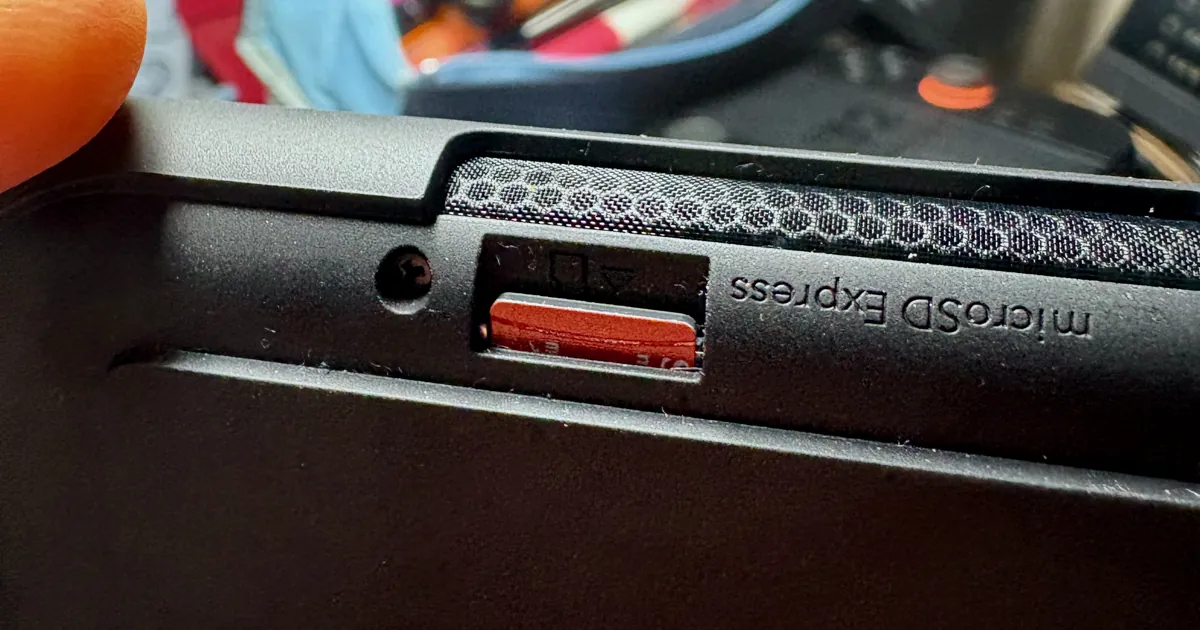
The only SD card the Switch 2 uses for games is a microSD Express card, up to 2 TB. The regular microSD card from your original Switch won't save or load games on the new console; it can only hand over your old screenshots and videos. This guide covers which Switch 2 SD card works, what fits in the 256 GB built in, and how much space you actually need, all checked against Nintendo's own support pages.
Key takeaways
- The Switch 2 expands storage with microSD Express cards only, up to 2 TB. None comes in the box.
- A regular microSD card can't store or run games on the Switch 2. It can only import screenshots and videos from an original Switch.
- Save data always stays in the console's 256 GB system memory, never on the card.
- Game-key cards download the whole game, so they use storage like a digital purchase. The box says how much.
- Four big Nintendo games (Mario Kart World, Donkey Kong Bananza, Kirby Air Riders and Metroid Prime 4) add up to about 81 GB.
Which Switch 2 SD card works: the compatibility table
Nintendo's answer is short: the Switch 2 is "only compatible with microSD Express cards", which read and write data faster than the microSD cards the original Switch used. Here's everything you might put in the console's slots, and what each one does, from Nintendo's documentation.
| What you insert | Works on Switch 2? | What for | Source |
|---|---|---|---|
| microSD Express card, up to 2 TB | Yes | Downloaded games, updates, add-on content, screenshots and videos. Not save data. | microSD Express FAQ |
| Regular microSD card (the kind the original Switch uses) | Only for one job | Importing screenshots and videos captured on an original Switch. No games, no save data. | Compatibility page |
| Switch 2 game card | Yes | Plays from the card; updates and add-ons still need storage | Tech specs |
| Original Switch game card | Yes | Same slot as Switch 2 game cards | Tech specs |
| Switch 2 game-key card | Yes | A key to download the full game; the card must stay inserted to play | Game-key card overview |
Two more rules from the same pages matter before you buy:
- The first time you insert a microSD Express card, the Switch 2 needs a system update over the internet.
- Nintendo recommends one card per console. When it fills up, the plan is to copy everything to a larger card, not to swap between several.
And if you still have an original Switch: microSD Express cards work in it too, but at the speed of a regular microSD card, according to Nintendo.
How to tell a microSD Express card from a regular one
Look for the word Express on the card and on its box. The SD Association, the group that sets the standard, describes microSD Express as adding the PCI Express and NVMe interfaces to the classic microSD design, which is where the extra speed comes from. The Switch 2's slot is labeled "microSD Express" right on the console.
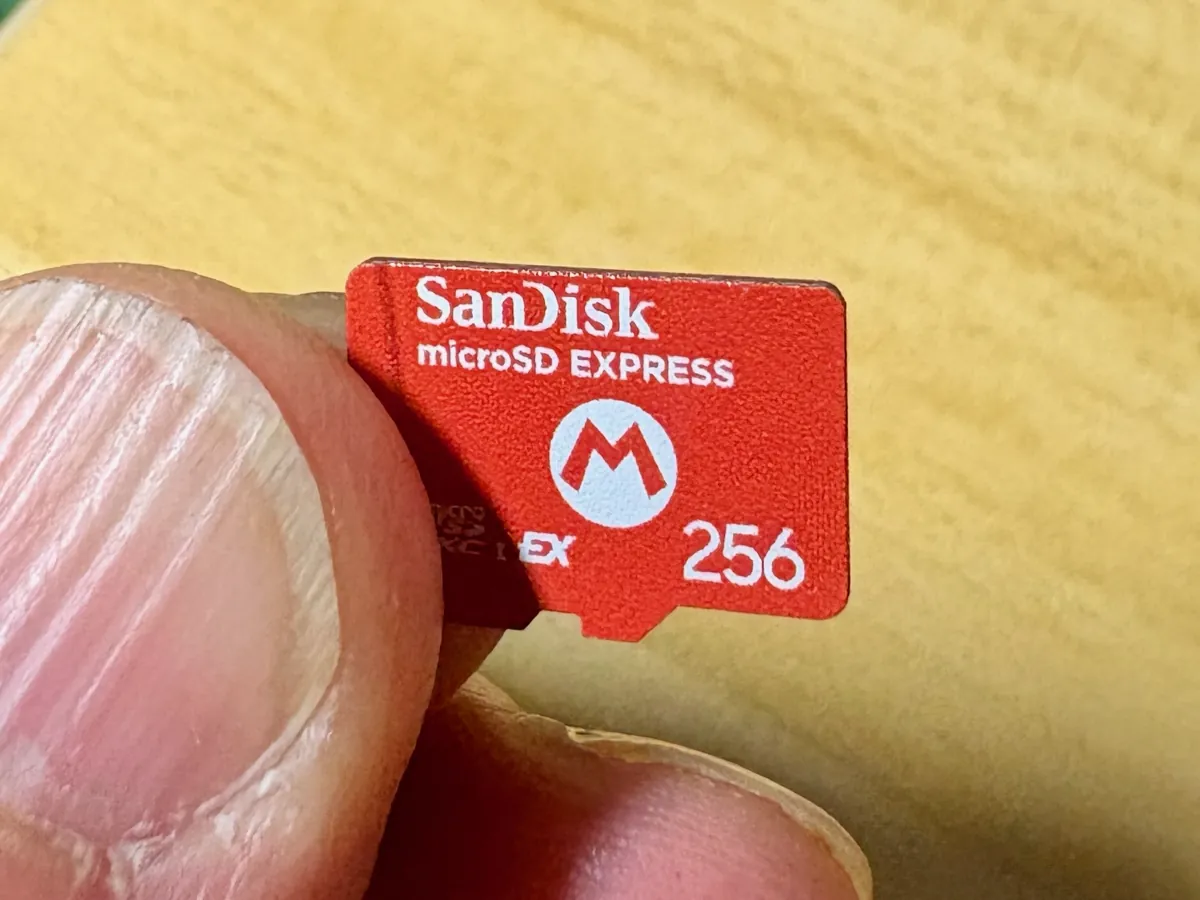
If "Express" isn't on the card, assume it's a regular microSD card and that the Switch 2 won't use it for games.
What happens to your old microSD card
Nothing breaks, but it stops being game storage. Nintendo is explicit: putting a card used on an original Switch into a Switch 2 "will not allow you to save or load digital games or save data." Here's what you can still do:
- Import your screenshots and videos. Insert the old card and go to System Settings, then Data Management, then Manage Screenshots and Videos, and pick Import from a Nintendo Switch microSD Card.
- Get your games back by downloading them again. Nintendo recommends moving as much as you can to the old console's system memory before you start. In a system transfer from Switch to Switch 2, your users and save data move over, and your digital games download onto the new console once setup finishes. You can switch that automatic download off and grab games later. Nintendo notes you may be asked to insert the old card for a moment to bring over screenshots and videos.
- Keep using it in the original Switch. It still works there as before.
How much storage the Switch 2 has built in
Every Switch 2 has 256 GB of internal storage, and Nintendo's tech specs add that "a portion of the storage is reserved for use by the system." Nintendo doesn't say how big that portion is, so treat 256 GB as a ceiling, not what you'll see free.
Two things always live in that system memory:
- Save data. Nintendo's FAQ says save data "cannot be copied or saved to a microSD Express card," so your progress stays on the console no matter where the game is installed.
- Everything, until you add a card. Without a microSD Express card, downloads, updates and captures all share the 256 GB.
This holds for every model, special editions included. If you're weighing the Zelda 40th Anniversary Switch 2, it has the same 256 GB inside and no card in the box.
How much space Switch 2 games take
These are the file sizes Nintendo lists on its US store for four of its own releases, as checked on September 23, 2026. Each figure links to the game's store page:
| Game | File size on Switch 2 |
|---|---|
| Mario Kart World | 22.2 GB |
| Donkey Kong Bananza | 9 GB |
| Kirby Air Riders | 21.9 GB |
| Metroid Prime 4: Beyond, Nintendo Switch 2 Edition | 27.7 GB |
| All four | 80.8 GB |
Sizes can change with updates. For any game, Nintendo says the space you need is printed on game-key card packaging and listed on the game's Nintendo eShop page.
Do game-key cards take up storage?
Yes, the full game. A game-key card "doesn't contain the full game data"; it's a key that lets you download it to system memory or a microSD Express card. You need an internet connection for that first download, and the card has to be in the console every time you play. Nintendo also says the console must be on system version 20.1.1 or later.
Is a microSD Express card slower than internal storage?
Not by much, in testing by others. Digital Foundry timed load screens on internal storage, a microSD Express card and a game card. As summarized by Club386, Mario Kart World took 16.42 seconds to start from internal storage, 15.92 seconds from microSD Express and 24.90 seconds from the game card. So moving games to a card costs little speed; the physical cartridge was the slow one. We haven't run these tests ourselves.
How much storage do you need?
How much Switch 2 storage is enough is our judgment, based on the numbers above, not a Nintendo rule:
- You mostly buy full game cards: the 256 GB built in may last a long time, since those games play from the cartridge and only updates and add-ons land in storage.
- You buy digital or game-key cards: plan on a card. Four big first-party games already take about 81 GB, a third of the console's total before the system's reserved space.
- You keep a big library installed: go larger than 256 GB. The console supports cards up to 2 TB.
On price, Nintendo's US store lists its licensed Samsung microSD Express card, 256 GB, at $59.99, as checked on September 23, 2026. Any card that meets the microSD Express standard works, according to Nintendo; we haven't tested any card, so this isn't a recommendation of a brand.
Step 1: Insert the card and update the console
Put the microSD Express card in the slot marked microSD Express. Make sure the Switch 2 is online: the first time you use a card, it needs a system update over the internet before the card is usable.
Step 2: Move games from system memory to the card
Once a card is in, new downloads go to it by default. To move games you already installed, Nintendo's steps are:
- Open System Settings from the HOME Menu.
- Scroll down and select Data Management.
- Select Move System / microSD Express Card Data.
- Choose what to move, then select OK.
Save data and some update data can't be moved. Nintendo also warns that this tool doesn't set where future data installs, and that if you keep playing after a move, update data may land in the other location.
Step 3: Upgrade to a bigger card later
When the first card fills up, Nintendo's method is to copy the whole card through a computer:
- Power off the Switch 2 and take out the old card.
- On a Windows PC with a card reader, copy the card's entire contents to the desktop without changing any files.
- Copy that data onto the new microSD Express card, then insert it in the Switch 2.
- Redownload any software from the Nintendo eShop if needed.
Nintendo says the copy may not work correctly on a Mac or other systems besides Windows. Don't format or erase the old card until the new one works.
Troubleshooting
- The Switch 2 won't use my card for games. It's almost certainly a regular microSD card. Check for "Express" on the card; if it isn't there, it only works for importing screenshots and videos.
- A new microSD Express card isn't working yet. Connect to the internet: the first use needs a system update.
- Games on a card from another Switch 2 won't start. Nintendo says software downloaded to a microSD Express card on one console won't play on a different one. Download it again on yours.
- A game-key card game won't launch. The card must be in the console to play, and the first download needs an internet connection.
- An update ended up in the wrong place. That's expected after moving data; Nintendo says update data may be saved to the location you didn't choose.
For more on the console, see our Video Games section and everything tagged Nintendo Switch 2.
Bottom line
The Switch 2 SD card has to be microSD Express, up to 2 TB, and your old Switch card only moves screenshots and videos across. If you buy digital or game-key cards, plan on a card soon, because the four big Nintendo games above already use about 81 GB of a 256 GB console. If you mostly play full game cards, you can wait and see how fast the built-in storage fills.
FAQ
Can I use a regular microSD card in the Switch 2?
Not for games. The Switch 2 only stores games, updates and add-on content on microSD Express cards. A regular microSD card can only be used to import screenshots and videos from an original Switch.
What is the largest microSD Express card the Switch 2 supports?
2 TB. Nintendo says any card that meets the microSD Express standard, up to 2 TB, can be used.
Does the Switch 2 come with a microSD Express card?
No. They're sold separately, and the console ships with 256 GB of internal storage, part of it reserved for the system.
Can I save game progress on a microSD Express card?
No. Save data always stays in the Switch 2's system memory and can't be copied or saved to the card. The card holds games, updates, add-on content, screenshots and videos.
Do microSD Express cards work in the original Switch?
Yes. Nintendo's compatibility table marks them as working on the original Switch, but there they read and write at the speed of a regular microSD card.