Firefox 157 redesign: compact mode, themes and AI controls
Firefox 157 brings Mozilla's Nova redesign, compact mode and a theme picker. How to turn each on, block AI features, and get the old look back.
Source-based. Written from the documents, reporting and reviews linked in the text. Nothing here was tested hands-on by The Ruling Desk. How we work
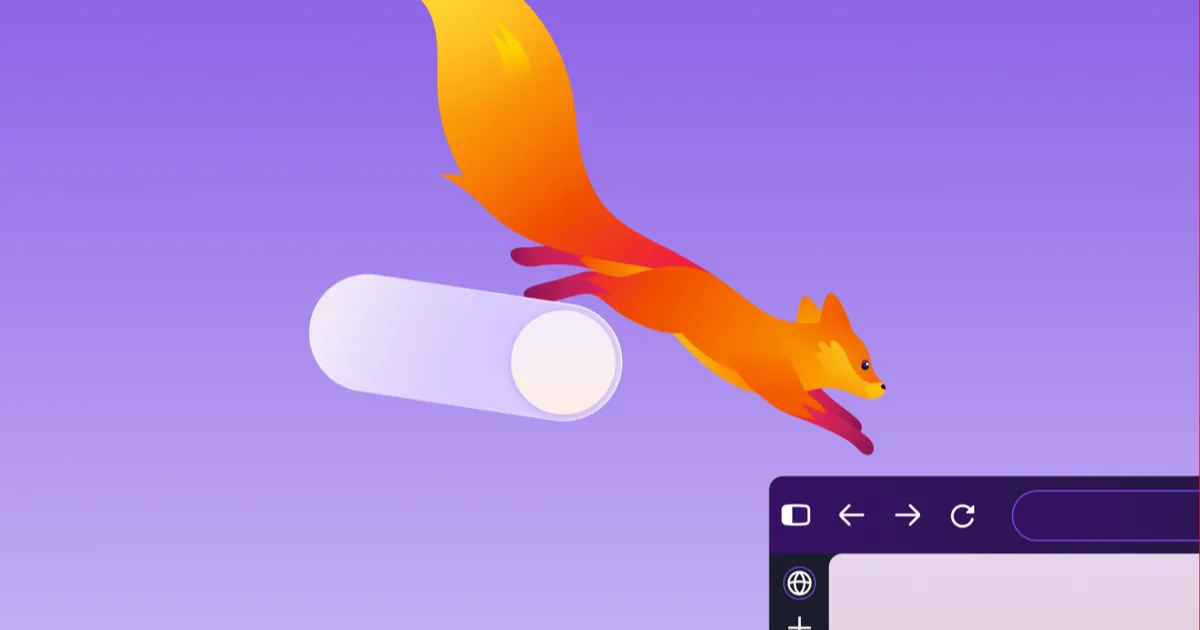
Firefox 157, released on September 29, 2026, gives the browser a new look that Mozilla calls Nova, and brings back compact mode for people who want more of the screen for web pages. It also adds a theme picker with new wallpapers and a pinned area for shortcuts on the New Tab page. This guide explains what changed, how to turn on compact mode, pick a theme and switch off AI features, whether you can get the old look back, and how to update now on your computer and phone.
Key takeaways
- Nova is Firefox's biggest visual change in years, per Mozilla's release notes: new toolbars, sidebar, menus, colors and icons.
- Compact mode is back, with an auto-compact option for smaller screens, according to Mozilla.
- A new theme picker adds built-in light and dark themes and wallpapers. Mozilla also offers a "Firefox Proton" theme for people who miss the old colors.
- AI Controls in Settings let you block every AI feature at once or one by one. That switch predates 157, but Mozilla points to it again with this release.
- Mozilla says the design goes to everyone on desktop and mobile, but the Android and iOS 157 release notes don't list it, so phones may lag behind.
What's new in Firefox 157
Mozilla's release notes for Firefox 157 call it "Firefox's biggest visual refresh in years," with a modernized look across the toolbars, sidebar, menus and individual features. Mozilla's add-ons team gives the design its name: in a post for theme developers, it calls Nova the biggest refresh of the Firefox interface since Proton, the design that arrived in 2021.
Here's what Mozilla lists as new in this release:
- The Nova design: refreshed colors, icons and themes. The theme background now continues under the sidebar, so the sidebar and toolbar look like one surface.
- Compact mode, which reduces toolbar and tab spacing, "useful on smaller screens and in split-screen layouts."
- A theme picker with new built-in themes, each in light and dark versions, plus new wallpapers.
- Pinned New Tab shortcuts: a dedicated space to pin and organize the sites you use most, so they stay put.
- The updated sidebar for everyone, and the "Show sidebar" option removed from Settings.
The release also carries changes that aren't about looks. WebRTC video calls can use hardware AV1 decoding on devices that support it, instead of always decoding that video format in software. Amazon is no longer a built-in search engine, though you can add it back as a custom one. Web page dialogs, color and date pickers now follow the page's light or dark scheme. And pressing Tab now jumps straight to the text field of the address bar.
Is the Firefox redesign on your phone yet?
Mozilla's announcement of the new design says it is "rolling out that design with FX 157 to everyone using Firefox across desktop and mobile devices." Mozilla didn't describe a phased rollout by percentage or region.
The phone release notes tell a quieter story, though. The Firefox for Android 157 notes list recent searches on the homepage, a free VPN in more than 200 regions and a swipe to dismiss downloads, with nothing about the new design. The Firefox for iOS 157 notes list only "behind-the-scenes updates." So on desktop, Firefox 157 is the redesign. On a phone, updating to 157 may not change much yet; Mozilla hasn't said when each mobile piece lands.
Step 1: Update to Firefox 157 now
Firefox updates itself, but it doesn't always do it the day a version ships. Mozilla's update instructions describe how to check by hand:
- Click the menu button (three lines) at the right of the toolbar.
- Choose Help and Report, then About Firefox. On a Mac, you can also open the Firefox menu in the menu bar and choose About Firefox.
- Firefox checks for updates and downloads version 157 if it's available.
- Click Restart to update Firefox.
If you installed Firefox on Linux through your distribution's package manager, Mozilla notes that updates come through your system's software updates instead.
On a phone, update Firefox from the Google Play Store or Apple's App Store like any other app.
Step 2: Turn on Firefox compact mode
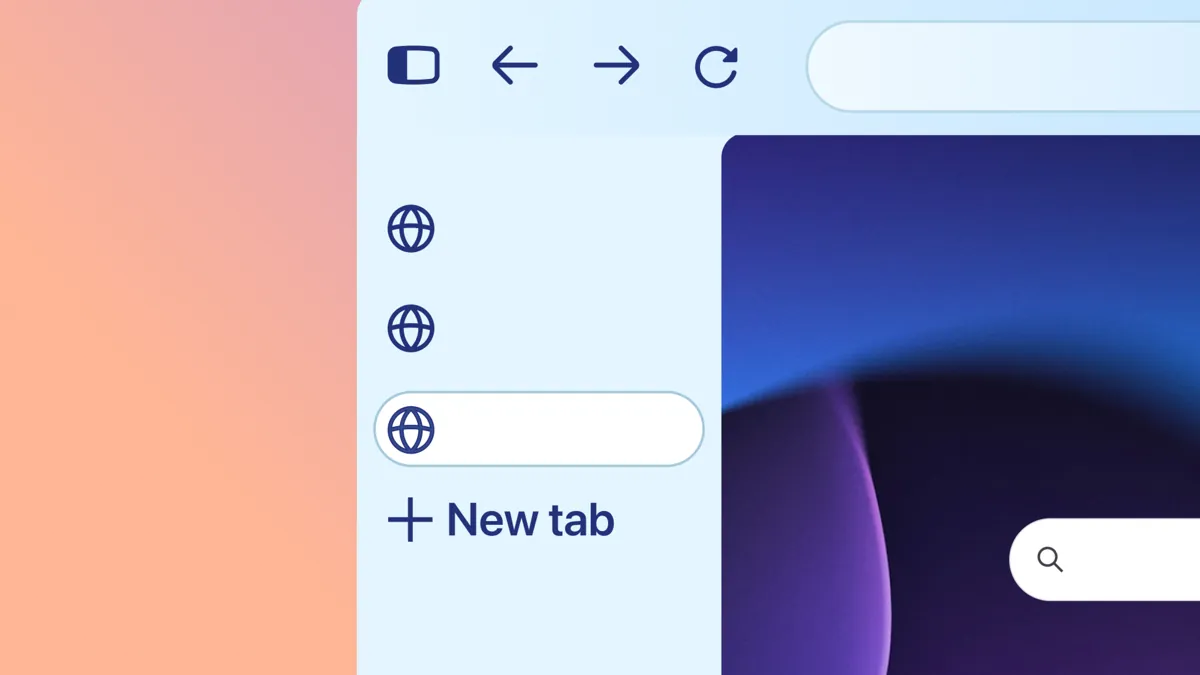
Mozilla's announcement says "Compact Mode reduces the size of your tabs and toolbar to give more of your screen to the web, with an auto-compact option for smaller screens." The add-ons team's post places it under Settings, in the Appearance section, as a density option. Ubuntu Handbook's rundown of the release describes a new Window density section there with three choices: Standard, Compact and Touch.
To switch:
- Open the menu (three lines) and choose Settings.
- Go to the Appearance section.
- Under Window density, choose Compact.
About auto-compact: Mozilla names the option but, in the pages we read, doesn't say where it lives or at what window size it kicks in. We'd expect it next to the density choices, but that's our guess, not Mozilla's documentation.
Compact mode matters most on a small laptop screen or with two windows side by side, which is the case Mozilla's release notes call out.
Step 3: Pick a theme and a wallpaper
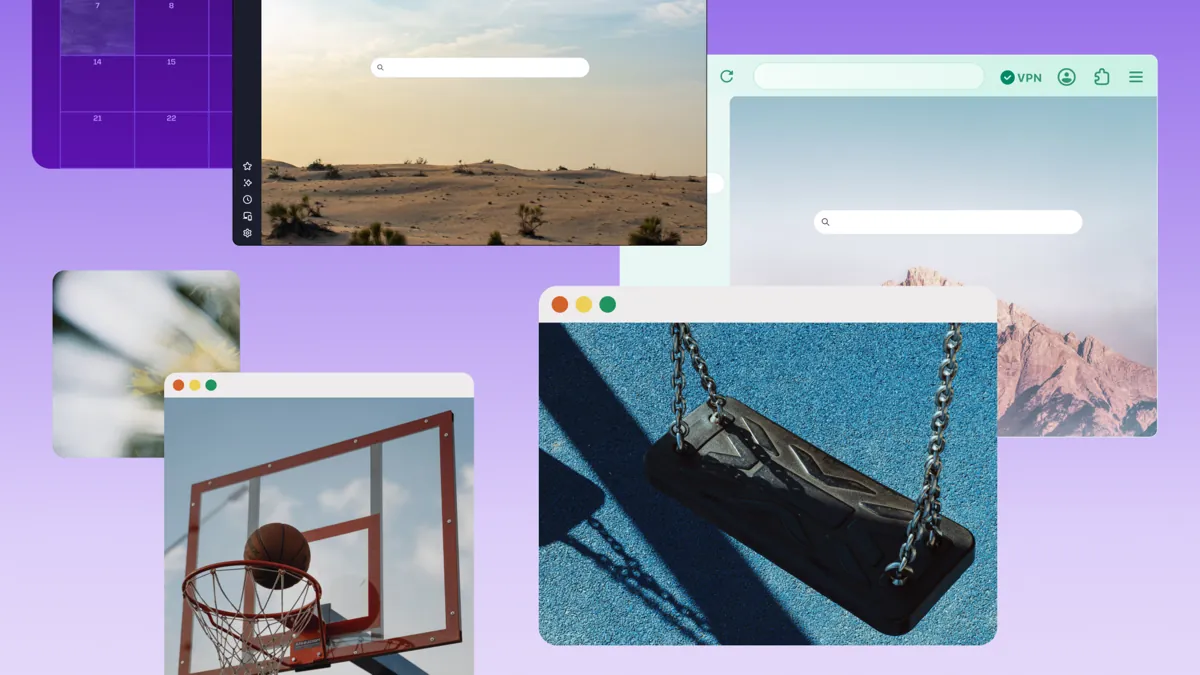
Mozilla says the new theme picker "makes it easier to explore different looks for Firefox, with new themes and wallpapers to choose from," and its release notes say each built-in theme comes in light and dark versions, applied "in one click." Ubuntu Handbook places the themes in the same Appearance section of Settings.
One detail if you use a theme from the add-ons site: Mozilla's add-ons team warns developers that Nova drops the shadow under the selected tab, so some older themes may make the current tab harder to spot until their authors update them.
Step 4: Pin your New Tab shortcuts
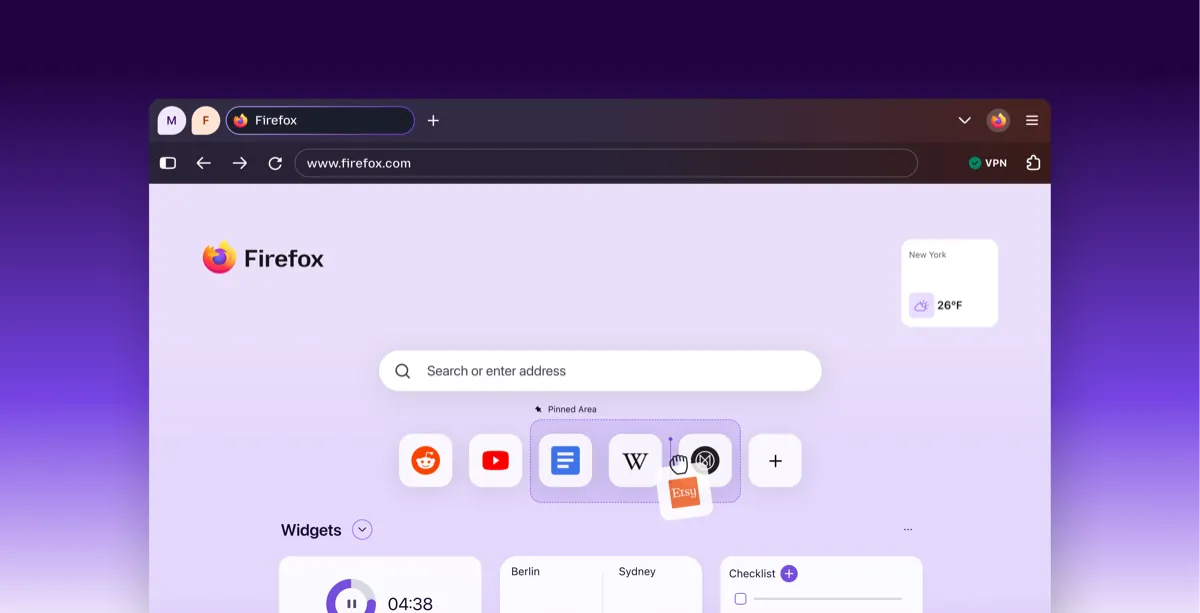
The New Tab page now has a dedicated area to pin and organize shortcuts. Mozilla's pitch is that "sites you use all the time stay put." Mozilla's own illustration shows a shortcut being dragged into a "Pinned Area" under the search box.
Step 5: Use Firefox AI controls to choose what stays on
Mozilla ties the redesign to more control over AI, but the main switch isn't new: Mozilla launched AI Controls on desktop in February, and its guide to AI controls explains how to use them:
- Open Settings (on a Mac, Firefox in the menu bar, then Settings).
- Go to AI Controls.
- To turn everything off, turn on Block AI enhancements. This covers current and future AI features.
- To turn off just one, find the feature, open its dropdown and choose Blocked.
Each feature has three states. Available means you can see and use it, Enabled means you've opted in, and Blocked means it's hidden and can't be used. Mozilla lists website translations, image alt text in PDFs, AI-enhanced tab groups, link previews and the AI chatbot in the sidebar among the features it covers.
With the redesign, Mozilla's announcement adds that you choose which AI features appear, "which model you choose and what context you want it to have." It doesn't say in that post which settings changed in 157.
On phones, Mozilla brought AI controls to Firefox mobile in May: you can turn the AI features off entirely or keep only the ones you want. Mozilla names website translations and voice search on Android, and translations and Shake to Summarize on iOS.
Step 6: Get the old look back (partly)
There's no switch to bring back the whole previous design. Mozilla offers two partial routes:
- The Firefox Proton theme. Starting September 29, Mozilla is featuring a Firefox Proton theme in the Add-ons Manager "for anyone who wants the previous look." It's published by Mozilla and described as "a classic grey palette." Firefox themes change colors and backgrounds, so expect the old palette on the new layout, not the old tab shapes.
- The previous sidebar. The release notes say you can restore it by typing
about:configin the address bar and settingsidebar.revamptofalse. That also turns off vertical tabs, and Mozilla says the preference stays available until the end of 2027.
Troubleshooting
- Nothing looks different after updating. Check Help and Report, then About Firefox, to confirm you're on 157, and restart if it asks. On a phone, the 157 release notes don't mention the design, so that may be expected for now.
- Your tab is hard to see. An older add-on theme may not style the selected tab now that Nova drops the shadow Proton drew under it. Try a built-in theme or check for a theme update.
- Amazon is missing from search. Mozilla removed it as a built-in engine in 157. You can add it back as a custom search engine in the search settings.
- Vertical tabs disappeared. If you set
sidebar.revamptofalse, that also turns off vertical tabs, per Mozilla. - About Firefox shows no update option on Linux. Your distribution handles updates for a packaged Firefox.
Bottom line
Update to Firefox 157 on desktop through About Firefox if you want Nova today, then open Settings and Appearance to try compact mode and the new themes. If you'd rather keep AI features out of your browser, Block AI enhancements in AI Controls turns them all off, a switch Mozilla shipped before this release. If you miss the old design, the Firefox Proton theme and the sidebar.revamp preference bring back part of it, the latter until the end of 2027. On phones, watch for the design to arrive, since the mobile 157 notes don't mention it. For more on the apps you use every day, see our software section and the Firefox tag.
FAQ
What is Firefox Nova?
Nova is the name Mozilla uses for the Firefox design that shipped with version 157 on September 29, 2026. It updates the colors, icons, toolbars, sidebar and menus, and Mozilla calls it the biggest refresh of the interface since Proton in 2021.
How do I turn on compact mode in Firefox 157?
Open Settings, go to Appearance and choose Compact under the window density options. Mozilla also mentions an auto-compact option for smaller screens but hasn't said in its announcement where it lives.
Can I go back to the old Firefox design?
Not entirely. Mozilla offers a Firefox Proton theme with the old grey palette, and the previous sidebar can be restored with the sidebar.revamp preference in about:config until the end of 2027.
How do I turn off AI in Firefox?
On desktop, open Settings, then AI Controls, and turn on Block AI enhancements. Mozilla says that blocks current and future AI features. The Android and iOS apps have their own AI controls too, which Mozilla added in May.