Switch to Switch 2 transfer: how to move games and saves
A Switch to Switch 2 transfer moves your games and most saves, but some saves leave the old console for good. Pick the right method and keep every file.
Source-based. Written from the documents, reporting and reviews linked in the text. Nothing here was tested hands-on by The Ruling Desk. How we work
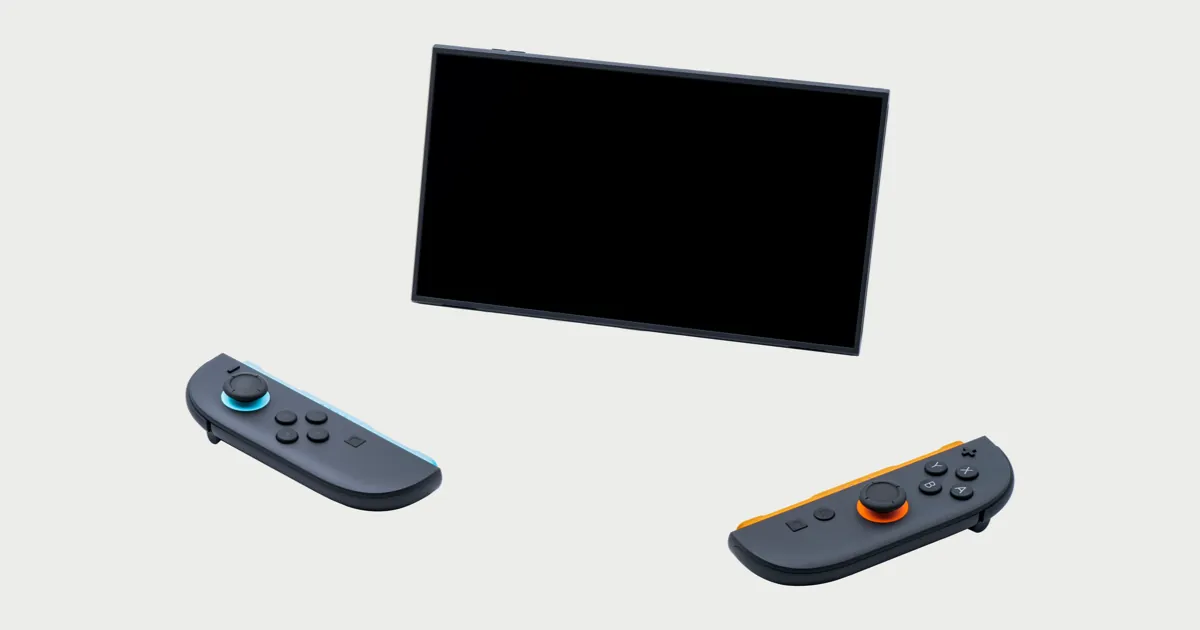
A Switch to Switch 2 transfer moves your users, digital games, settings and save data from an original Switch to the new console, and Nintendo gives you two ways to do it: a local transfer with both consoles side by side, or a server transfer if the old one will be gone before the new one arrives. Both only work during the Switch 2's first setup, and both can take saves off your old Switch for good. Everything in this guide is confirmed in Nintendo's official support documentation, as checked on October 3, 2026; we haven't run a transfer ourselves.
Key takeaways
- Have both consoles at once? Use a local transfer. Selling or trading in the old Switch first? Use a server transfer, which keeps your data for up to a year and wipes the old console.
- The system transfer only runs during the Switch 2's initial setup. Skip it and you'll have to reset the Switch 2 or move saves game by game.
- In a local transfer, saves for games that support Save Data Cloud are copied. Saves for games that don't, such as every Pokémon game on Nintendo's list and Animal Crossing, are moved and deleted from the old Switch.
- Your old microSD card can't hold Switch 2 games. Move what you can to system memory before you start.
- Animal Crossing: New Horizons has its own Island Transfer Tool for when your Switch 2 is already set up.
Which Switch to Switch 2 transfer fits you
Start with your situation. Nintendo's system transfer page recommends the local method when you have both consoles at the same time and the server method when you won't, "such as if you're trading in, selling, or giving away" the old one. Here's how that plays out, from Nintendo's support pages:
| Your situation | What to use | What happens to the old Switch |
|---|---|---|
| Both consoles in your hands, new Switch 2 not set up yet | Local system transfer | Saves for Save Data Cloud games stay; other saves are deleted from it |
| Old Switch sold, traded in or gifted before the Switch 2 arrives | Server system transfer | Fully reset to factory settings after the upload |
| You'll keep playing some games on the old Switch | Transfer Your Save Data, user by user and game by game | Only the saves you send leave it |
| Switch 2 already set up without a transfer | Transfer Your Save Data, Save Data Cloud downloads, or reset the Switch 2 and redo setup | Depends on the method |
If you preordered the Zelda 40th Anniversary Switch 2, which ships October 29, 2026, or a holiday console, decide before you unbox it. The first setup screen is where the transfer starts.
Which consoles can send data
Any original Switch model, Switch Lite and OLED Model included, can be the source, and so can another Switch 2. The target must be a Switch 2. Nintendo's page, which it also publishes in Latin American Spanish, says you can't do a system transfer back from a Switch 2 to a Switch.
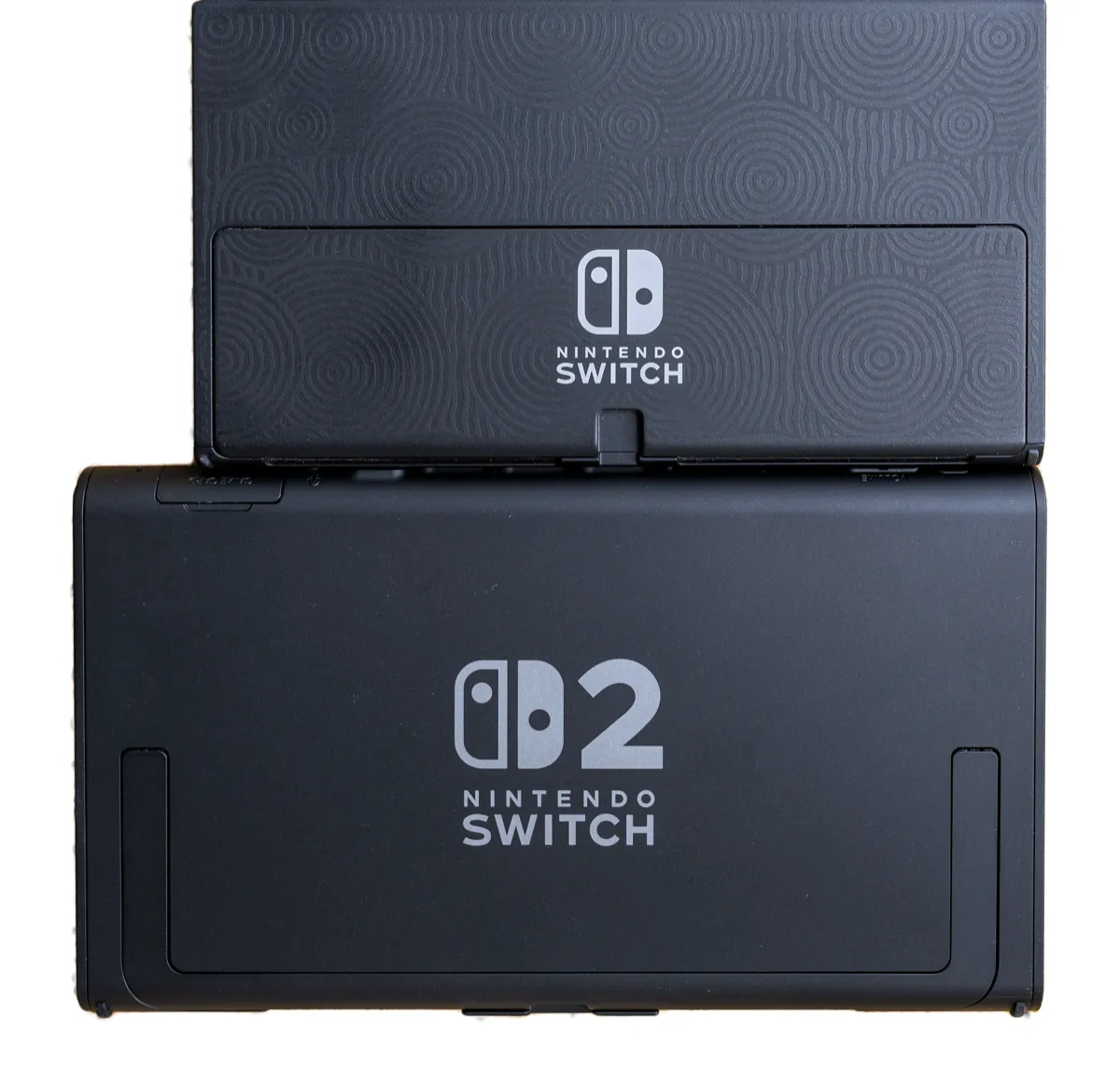
Step 1: Run the pre-transfer checklist
Do these on the old Switch before you turn on the new one. Each comes from Nintendo's transfer and save data pages.
- Update both consoles to the latest system version and connect both to the internet. The transfer needs a connection the whole way.
- Link every user to a Nintendo Account. The user who starts the transfer must sign in. Saves for users without a linked account are deleted from the old Switch after a local transfer.
- Tell everyone who shares the console. Nintendo warns that all users' data is included in a system transfer.
- Back up to Save Data Cloud if you have Nintendo Switch Online, which the service requires. To check a game, select its icon on the HOME Menu, press the + Button and choose Save Data Cloud; Nintendo's steps say an unsupported game will tell you so.
- Note the games without Save Data Cloud. Nintendo's Save Data Cloud page lists these Nintendo and Pokémon titles as unsupported, as of November 27, 2025: 1-2-Switch, Splatoon 2, Pokémon: Let's Go, Pikachu! and Let's Go, Eevee!, Pokémon Sword and Shield, Animal Crossing (including the Nintendo Switch 2 Edition), Pokémon Café ReMix, Pokémon UNITE, Pokémon Brilliant Diamond and Shining Pearl, Pokémon Legends Arceus, Pokémon Scarlet and Violet, and Pokémon Legends Z-A (including the Nintendo Switch 2 Edition). Other publishers' games can be on that side too: the Nintendo listings for EA FC 27 on Switch 2 say it doesn't support the backup.
- Empty your old microSD card into system memory where you can. Nintendo recommends moving as much data as possible to system storage first. If you can't, the Switch 2 may ask you to insert the old card for a moment, only to copy screenshots and videos.
- Avoid maintenance windows. Nintendo says a transfer won't start if network maintenance is in progress or about to begin.
On that microSD card: the Switch 2 only uses microSD Express cards for games, and an original Switch card works only for importing screenshots and videos. Our Switch 2 SD card guide explains which cards work and how much space you need. If you have a microSD Express card, the Switch 2 offers to set it up during the transfer; otherwise you pick Skip.
Step 2: Know what moves and what stays
Nintendo lists exactly what a system transfer carries. It also lists the same items on its UK support page.
| Transferred | Not transferred |
|---|---|
| Digital games (they download after setup; you can turn that off) | Bluetooth audio devices and settings |
| All users, Nintendo Accounts, friends and play activity | Custom controller button mappings |
| Save data (copied or moved, by method) | Time, time zone, region and language |
| Screenshots and videos in system memory | |
| Registered networks, Parental Controls and Mii data | |
| Virtual game card status, HOME Menu icon order and groups |
After setup, Nintendo says you still have to finish a few things by hand: virtual game card console registrations, digital game downloads and re-linking the Parental Controls app.
Step 3: Transfer saves with both consoles nearby
This is the local method, for when both consoles are in the same room. Keep them close together throughout.
On the Switch 2:
- Turn it on and follow initial setup until the System Transfer screen.
- Connect to the internet and install the system update if asked.
- Select Start System Transfer.
- Insert a microSD Express card using the on-screen guide, or select Skip.
- Select Sign In to a Nintendo Account and use the same account as the old Switch's user.
- Select Next, keep the consoles together and select Done.
On the old Switch:
- Open Settings from the HOME Menu, then System, then System Transfer to Nintendo Switch 2, and select Next.
- When the Switch 2 is ready, select Done.
- Choose whether to redownload your games and transfer screenshots and videos, then select Next.
- Once the consoles connect, select Start Download on the Switch 2, and OK on the old Switch when it finishes.
Read this before you press the last button. Nintendo says the copy-and-keep rule applies only to games that support Save Data Cloud, for users linked to a Nintendo Account. Everything else is moved, not copied: saves for unsupported games and unlinked users are deleted from the old Switch, and you can't send them back with a system transfer. If you want to keep, say, your Pokémon Scarlet save on the old console, Nintendo suggests you transfer save data for individual users instead of running a full system transfer.
Step 4: Or transfer through Nintendo's server
Use this when the old Switch won't be around once the Switch 2 arrives. Skip it if you did Step 3.
- On the old Switch, open Settings, then System, then System Transfer to Nintendo Switch 2, and select Next.
- Select I Don't Have the Other System Yet (it may read "I don't have a Nintendo Switch 2 yet").
- Write down the Download Deadline. Nintendo keeps the data for up to 1 year and shows the date again in your Nintendo Account settings.
- Confirm the warning (you may need a verification code), pick your download and album options and select Upload Data.
- Select OK twice, then Start Initialization. The old Switch is reset and every user's data on it is deleted.
- When the Switch 2 arrives, follow its initial setup and sign in with the same Nintendo Account to pull the data down.
If the source was an original Switch and you change your mind before downloading, Nintendo says you can cancel the server transfer and restore the data to it.
Step 5: Use the right tool for these games
Most games need nothing beyond the system transfer. These are the exceptions to plan for.
Animal Crossing: New Horizons
Your island travels with either kind of system transfer, according to Nintendo's island transfer page. After a local transfer, the residents aren't tied to any user yet, so the first launch on the Switch 2 asks you to link each user to their resident data.
If your Switch 2 is already set up, download the Island Transfer Tool on both consoles. Nintendo's conditions: both consoles on hand, the game updated on both, every user linked to the same Nintendo Account on the new console, and no existing island on it. The island is deleted from the old console once it moves. The game doesn't use Save Data Cloud either (it has its own island backup feature instead), so move it once and on purpose.
Pokémon games
No Pokémon game on Nintendo's list supports Save Data Cloud, so in a local transfer those saves move off the old Switch rather than being copied. Pokémon HOME is the official safety net for your Pokémon, not your save: it's an app for Switch and phones that stores Pokémon, 30 on the free plan and 6,000 on Premium, which costs $2.99 a month in the US.
The risk isn't hypothetical. TechRadar reported in June 2025 that a Reddit user said their Pokémon Scarlet save, with more than 1,000 hours, was missing after a Switch 2 transfer that showed no error. The post was deleted, no cause was established and we can't verify it, but players in that report advised depositing Pokémon in HOME first. That's cheap insurance.
Remasters and new versions
A new version of a game is a separate question from a new console. Moving progress into The Witcher 3 Remastered, for example, has its own steps, covered in our Witcher 3 Remastered save transfer guide.
Troubleshooting
- I already finished setting up the Switch 2. The system transfer only runs at initial setup. Nintendo's options: reset the Switch 2 and set it up again, move saves with Transfer Your Save Data (System Settings, then Data Management, then Transfer Your Save Data, with both consoles online and nearby), or download your Save Data Cloud backups with Nintendo Switch Online.
- Transfer Your Save Data deleted the save from my old Switch. That's by design. Nintendo says it "does not create a copy," so each save lives on one console at a time. It doesn't need Nintendo Switch Online.
- The transfer won't start. Check both consoles are updated and online, and try again later in case of network maintenance.
- My games aren't on the Switch 2. Nintendo says digital games download fresh on the Switch 2 after setup, never from the old console or its card. If you turned off the automatic download, get them from the Nintendo eShop.
- The download deadline is close. Finish the server transfer on a Switch 2 or cancel it before that date, or the data is gone.
For more on the console, see everything tagged Nintendo Switch 2.
Bottom line
For most people, the safest Switch to Switch 2 transfer is the local one, done at first setup with both consoles in the same room, after a Save Data Cloud backup and a Pokémon HOME deposit. Go server only if the old Switch is leaving first, and write down the deadline. If you'll keep using the old console, move saves game by game instead, because any save without cloud support can live on only one of them.
FAQ
Does a system transfer delete data from my old Switch?
It depends on the method. A server transfer resets the old Switch completely. A local transfer keeps saves for games that support Save Data Cloud, for users linked to a Nintendo Account, and deletes the rest from the old console after copying them over.
Can I transfer data after setting up my Switch 2?
Not with a system transfer, which Nintendo only allows during initial setup. You can reset the Switch 2 and start over, or move individual saves with Transfer Your Save Data and download Save Data Cloud backups.
How long does Nintendo keep a server transfer?
Up to 1 year. The Download Deadline appears when you set up the transfer and later in your Nintendo Account settings.
Do I need Nintendo Switch Online to transfer?
Nintendo's transfer page asks for a Nintendo Account and an internet connection and lists no membership requirement, and its Transfer Your Save Data feature works without one. Save Data Cloud backups do require Nintendo Switch Online.
Will my old microSD card work in the Switch 2?
Not for games or saves. The Switch 2 needs a microSD Express card for that; an original Switch card can only hand over screenshots and videos.